亮的MARK库

mark.liangliang.org.cn

blkid(查看块设备的文件系统类型、LABEL、UUID等信息)

查看块设备的文件系统类型、LABEL、UUID等信息

补充说明

在Linux下可以使用 blkid命令 对查询设备上所采用文件系统类型进行查询。blkid主要用来对系统的块设备(包括交换分区)所使用的文件系统类型、LABEL、UUID等信息进行查询。要使用这个命令必须安装e2fsprogs软件包。

语法

blkid -L  -U
blkid [-c ] [-ghlLv] [-o] [-s ][-t ] -[w ] [ ...]
blkid -p [-s ] [-O ] [-S ][-o] ...
blkid -i [-s ] [-o] ...

选项

-c <file>   指定cache文件(default: /etc/blkid.tab, /dev/null = none)
-d          don't encode non-printing characters
-h          显示帮助信息
-g          garbage collect the blkid cache
-o <format> 指定输出格式
-k          list all known filesystems/RAIDs and exit
-s <tag>    显示指定信息,默认显示所有信息
-t <token>  find device with a specific token (NAME=value pair)
-l          look up only first device with token specified by -t
-L <label>  convert LABEL to device name
-U <uuid>   convert UUID to device name
-v          显示版本信息
-w <file>   write cache to different file (/dev/null = no write)
<dev>       specify device(s) to probe (default: all devices)
Low-level probing options:
-p          low-level superblocks probing (bypass cache)
-i          gather information about I/O limits
-S <size>   overwrite device size
-O <offset> probe at the given offset
-u <list>   filter by "usage" (e.g. -u filesystem,raid)
-n <list>   filter by filesystem type (e.g. -n vfat,ext3)

实例

1、列出当前系统中所有已挂载文件系统的类型:

sudo blkid

2、显示指定设备 UUID:

sudo blkid -s UUID /dev/sda5

3、显示所有设备 UUID:

sudo blkid -s UUID

4、显示指定设备 LABEL:

sudo blkid -s LABEL /dev/sda5

5、显示所有设备 LABEL:

sudo blkid -s LABEL

6、显示所有设备文件系统:

sudo blkid -s TYPE

7、显示所有设备:

sudo blkid -o device

8、以列表方式查看详细信息:

sudo blkid -o list

Linux 批量查找与替换

Linux批量查找与替换,使用 sed 命令来实现查找文件中的内容并替换。

语法格式

sed -i "s/原字符串/新字符串/g" `grep 原字符串 -rl 所在目录`

实例

以下我们实现在当前目录下查找包含 liang 的字符串,并将字符串 liang 替换为 wiki ,执行命令:

sed -i "s/liang/g" `grep "wiki" -rl ./`

接下来使用一个更复杂实例,批量替换网址 https://liangliang.org.cnhttp://liangliang.org.cn

sed -i "s/https:\/\/liangliang.org.cn/http:\/\/liangliang.org.cn\/libs/g" `grep -rl "https:\/\/liangliang.org.cn" ./`

在搭载Apple T2安全芯片的Mac机型上安装Linux

配备 Apple T2 安全芯片的电脑(2018年以后的x86机型)

下列 Mac 电脑配备了 Apple T2 安全芯片:

- iMac(视网膜 5K 显示屏,27 英寸,2020 年)
- iMac Pro
- Mac Pro(2019 年)
- Mac Pro(机架式机型,2019 年)
- Mac mini(2018 年)
- MacBook Air(视网膜显示屏,13 英寸,2020 年)
- MacBook Air(视网膜显示屏,13 英寸,2019 年)
- MacBook Air(视网膜显示屏,13 英寸,2018 年)
- MacBook Pro(13 英寸,2020 年,两个雷雳 3 端口)
- MacBook Pro(13 英寸,2020 年,四个雷雳 3 端口)
- MacBook Pro(16 英寸,2019 年)
- MacBook Pro(13 英寸,2019 年,两个雷雳 3 端口)
- MacBook Pro(15 英寸,2019 年)
- MacBook Pro(13 英寸,2019 年,四个雷雳 3 端口)
- MacBook Pro(15 英寸,2018 年)
- MacBook Pro(13 英寸,2018 年,四个雷雳 3 端口)

一些问题

  • 一些内核版本,特别5.8.x5.9.x已知存在问题。

  • 无法使用Mac启动管理器启动GRUB 。如果无法成功引导请参照本教程中在Macos中安装rEFInd来引导内核。

  • 我可以完全删除 macOS 吗?

    技术上完全可行,但建议使用Macos和Linux双重引导。

    因为:

    1. 充当备份,以防出现问题。
    2. macOS 更新的固件,通过一些手段可以用于Linux。

哪些Linux发行版可以安装

基于Debian Ubuntu
基于Arch Manjaro
基于Redhat Fedora
....


​ 虽然从技术上讲,安装 Linux并没有限制,但不同的发行版确实提供了不同级别的文档、易用性和问题。

本教程提供Debian、Ubuntu、Manjaro

Debian安装指南

  1. 在 MacOS 中减小 mac 分区的大小

  2. 重要:在磁盘最后划分200mb fat分区,用于存储debianT2内核以及firmwware脚本等。

  3. 关闭安全启动并允许从外部媒体启动 - https://support.apple.com/en-us/HT208330

  4. 下载debian iso - https://mirrors.163.com/debian-cd/

    例如:https://mirrors.163.com/debian-cd/11.3.0-live/amd64/iso-hybrid/debian-live-11.3.0-amd64-gnome.iso

    • 检查提取的 .ISO 的 SHA256 校验和,以验证您的提取过程是否顺利

    MacOS:shasum -a 256 .iso debian-live-11.3.0-amd64-gnome.iso Linuxsha256sum debian-live-11.3.0-amd64-gnome.iso 请将其sha256文件中的值进行比较。https://mirrors.163.com/debian-cd/11.3.0-live/amd64/iso-hybrid/SHA256SUMS

  5. 通过以下方式将映像刻录到 U 盘 >=8GB:

    推荐使用etcher https://www.balena.io/etcher/

    • dd

      • Linuxsudo dd bs=4M if=/home/user/Downloads/debian-live-11.3.0-amd64-gnome.iso of=/dev/sdc conv=fdatasync status=progress

      • 苹果系统

      diskutil list #找到哪个号码有USB 
      sudo diskutil umountDisk /dev/diskX 
      sudo dd bs=4096 if=debian-live-11.3.0-amd64-gnome.iso of=/dev/diskX
      • 如果dd由于有各种某种原因不适合,可以尝试通过安装gddbrew改用 GNUdd命令sudo gdd bs=4M if=debian-live-11.3.0-amd64-gnome.iso of=/dev/diskX conv=fdatasync status=progress
    • Rufus (GPT)- https://rufus.ie/,如果提示使用 DD 模式

    • 请不要使用 livecd-iso-to-disk,因为它会覆盖 ISO 默认 grub 设置,并且 Ubuntu 将无法正确启动!

  6. 提前准备好……..deb内核放置第二个u盘或efi分区。

  7. 外接键鼠

  8. 以恢复模式启动并允许启动未知操作系统

  9. 重启并立即按下选项键,直到出现Logo

  10. 选择“EFI Boot”(也许有两个选择最后一个)

  11. 启动 Debian

  12. 安装

  13. **[重要]**选择适合您的选项并使用以下设置进行分区:

*   保留安装程序预先选择的 efi 引导。您的 Mac 将继续正常工作。
*   添加一个 ext4 分区并安装为`/boot`(1024MB)。
*   添加一个 ext4 分区并 monted as `/`(rest)。
*   选择`/boot`分区作为 GRUB 安装的目标,否则系统将无法启动。
  1. 运行安装程序(我的情况是在构建grub时候会提示失败,先不用管,等后续操作)

  2. 启动Console,可以crtl+alt+f1.2.3.4.5…..

  3. 安装deb内核不定firwmare

/sbin/fdisk -l

找到你200mb fat分区

/sbin/fdisk -l
mount /dev/xxxx /mnt
export PATH=/usr/loca/sbin:/usr/sbin:/sbin:$PATH
dpkg /mnt/*.deb
reboot
  1. 重启

  2. 关闭并移除 USB 驱动器

  3. 使用Option键,引导Macos。

  4. macOS中构建rEFInd Boot Manager

  5. 利用rEFInd启动debian。

  6. 如果引导不了请联系笔者交流问题 gugong.j@foxmail.com

后续:

[ 2836.722627] evbug.c: Event. Dev: input5, Type: 4, Code: 4, Value: 156 [ 2836.722638] evbug.c: Event. Dev: input5, Type: 1, Code: 96, Value: 0 [ 2836.722645] evbug.c: Event. Dev: input5, Type: 0, Code: 0, Value: 0

touch /etc/modprobe.d/blacklist.conf tail -n2 /etc/modprobe.d/blacklist.conf

evbug

blacklist evbug

macOS中构建rEFInd Boot Manager

此处给出的所有步骤都必须在macOS上执行。您还需要禁用安全启动

  1. 在磁盘工具的帮助下,创建一个 100-200MB 的MS-DOS FAT分区并将其标记为REFIND.

  2. 从此处获取rEFInd的二进制 zip 文件

  3. rEFInd 的二进制 zip 文件应在下载文件夹中,名称为refind-bin-<VERSION>.zip,其中<VERSION>代表您下载的 rEFInd 版本。例如:- 如果您已下载0.13.2版本,它将以refind-bin-0.13.2.zip.

  4. 现在在终端中运行以下命令:-

    IDENTIFIER=$(diskutil info REFIND  grep "Device Identifier"  cut -d: -f2  xargs)
    cd ~/Downloads
    unzip refind-bin*
    rm refind-bin*.zip
    cd refind-bin*
    xattr -rd com.apple.quarantine .
    sed -i '' "s/sed -i 's/sed -i '' 's/g" refind-install
    diskutil unmount $IDENTIFIER
    sudo ./refind-install --usedefault /dev/$IDENTIFIER
    diskutil unmount $IDENTIFIER
    diskutil mount $IDENTIFIER
    sudo rmdir /tmp/refind_install
    rm -r ~/Downloads/refind-bin*
  5. 现在运行:-

    bless --folder /Volumes/REFIND/EFI/BOOT --label rEFInd

    这会将 Mac 启动管理器中 rEFInd 的标签从EFI Boot更改为rEFInd

配置

带有 T2 芯片的 Mac 无法 BIOS 启动,因此建议删除 BIOS 条目。为此,打开finder,打开REFIND卷。EFI/BOOT/refind.conf通过使用文本编辑器进行编辑,在文件末尾添加下面给出的行。

scanfor internal,external,optical,manual

如果遇到错误说无法保存文档“refind.conf”。,将文件复制refind.conf到主目录中的任何位置(例如下载文件夹)并在那里进行编辑。refind.conf编辑后用新编辑的文件替换REFIND卷中的文件。

在使用 rEFInd 启动操作系统时隐藏文本(可选)

如果使用 rEFInd 启动 macOS 以外的操作系统,它会在启动时显示一些调试文本。为了获得与 Mac 启动管理器类似的流畅启动体验,请将以下行添加到 中EFI/BOOT/refind.conf的最后一行,就像删除 BIOS 配置一样。

use_graphics_for osx,linux,windows,grub

阻止使用 NVRAM(可能已经启用)

必须防止使用 NVRAM,因为 T2 不喜欢有人触摸 NVRAM。在最新版本的 rEFInd 中,默认启用防止使用 NVRAM。use_nvram false您可以通过检查文件中间某处是否存在行来确认这一点refind.conf(上述说明中提到的那个)。确保它没有被注释(#行前没有)。如果是则删除#.

如果该行丢失,请将其添加到refind.conf文件末尾。

如果该行use_nvram true存在,请更改truefalse.

在启动时将 rEFInd 设为默认值

正确安装和配置 rEFInd 后,我们需要让它在每次启动时默认启动。为此,请重新启动 Mac 并按住

**Option (Alt)**键

当显示启动管理器时,

松开 Option 键

现在按住Control键,不松开 Control 键,启动到rEFInd 启动盘

现在在每次启动,默认情况下都从rEFInd引导。

每次将 macOS 更新到较新版本时都必须执行此步骤,因为这会使 macOS 启动盘成为默认启动盘。

重启完成引导构建

  • 进阶

使用 rEFInd 修复启动 macOS 时的空白屏幕

有时,在使用 rEFInd 启动 macOS 时,用户会卡在空白屏幕上。仅当您在上次启动时通过按住电源按钮执行强制/不安全关机时才会观察到此错误。一些用户在新安装的 rEFInd 上使用 rEFInd 首次启动 macOS 时也遇到过这种情况。

为了修复它,请关闭 Mac 并在按住**Option (Alt)**键的同时重新启动。显示 Mac 启动管理器时松开 Option 键。使用 Mac 启动管理器启动 macOS。这将修复后续引导的错误。

使用 rEFInd 作为 GRUB、systemd-boot 等的替代品。

默认情况下,rEFInd 通过引导 GRUB、systemd-boot 等间接引导 Linux。但我们也可以使用 rEFInd 直接引导 linux。这在其他引导加载程序引起问题的情况下很有用。为此,请按照以下步骤操作:-

  1. 使用当前使用的引导加载程序引导至 Linux。如果引导加载程序遇到问题,您也可以使用发行版的 ISO chroot 进入安装并在 chroot 中运行命令。

  2. 从此处获取rEFInd的二进制 zip 文件

  3. rEFInd 的二进制 zip 文件应在下载文件夹中,名称为refind-bin-<VERSION>.zip,其中<VERSION>代表您下载的 rEFInd 版本。例如:- 如果您已下载0.13.2版本,它将以refind-bin-0.13.2.zip.

  4. 将压缩包移动到/boot文件夹中。如果您正在 chroot,请将 zip 移动到chroot/boot的文件夹中。

  5. 现在运行:-

    cd /boot
    sudo unzip refind-bin*
    sudo rm refind-bin*.zip
    cd refind-bin*
    sudo ./mkrlconf
    sudo sed -i 's/"Boot to single-user mode"/#"Boot to single-user mode"/g' /boot/refind_linux.conf
    sudo sed -i 's/"Boot with minimal options"/#"Boot with minimal options"/g' /boot/refind_linux.conf
    sudo rm -r /boot/refind-bin*
  6. 一个名为的文件refind_linux.conf应在您安装的**/boot**文件夹中创建。下面给出了一个示例。

    "Boot with standard options"  "ro root=UUID=631c326a-fb48-46ba-b4aa-6dd2033fbb5e"
    #"Boot to single-user mode"    "ro root=UUID=631c326a-fb48-46ba-b4aa-6dd2033fbb5e single"
    #"Boot with minimal options"   "ro root=UUID=631c326a-fb48-46ba-b4aa-6dd2033fbb5e"

    如果您在 chroot 中运行了步骤 5 中的命令,则ro root=UUID=631c326a-fb48-46ba-b4aa-6dd2033fbb5e可能会丢失。在这种情况下,手动编辑chrootrefind_linux.conf文件/boot夹中的文件,使其看起来像示例,并将UUID(在示例中)替换为安装 Linux 的分区之一。您可以从chroot文件或使用磁盘实用程序软件获取 UUID 。631c326a-fb48-46ba-b4aa-6dd2033fbb5e``/etc/fstab

  7. 在带有 的行上"Boot with standard options",添加intel_iommu=on iommu=pt pcie_ports=compat efi=noruntime quiet splash参数。可能已经添加了一些参数。在这种情况下,只添加缺少的参数。如果您不想要静默启动,您可以省略该quiet splash参数。最后,refind_linux.conf文件应该看起来像这样。

    "Boot with standard options"  "ro root=UUID=631c326a-fb48-46ba-b4aa-6dd2033fbb5e intel_iommu=on iommu=pt pcie_ports=compat efi=noruntime quiet splash"
    #"Boot to single-user mode"    "ro root=UUID=631c326a-fb48-46ba-b4aa-6dd2033fbb5e single"
    #"Boot with minimal options"   "ro root=UUID=631c326a-fb48-46ba-b4aa-6dd2033fbb5e"
  8. 现在,当您进入 rEFInd 时,它应该显示一个带有内核映像路径的条目,并且很可能具有 Linux Penguin 的图标。该条目应是使用 rEFInd 直接引导 Linux 的条目。

  9. 如果您想使用您的发行版图标而不是 Linux Penguin 图标,您可以使用您的发行版名称标记包含您的内核的卷。以下是各种文件系统的一些命令示例,以发行版为Ubuntu和内核所在的分区为/dev/nvme0n1p3.

    1. ext2、ext3 或 ext4:-

      sudo tune2fs -L "Ubuntu" /dev/nvme0n1p3
    2. btrfs :-

      MOUNTPOINT=$(findmnt -n -o TARGET /dev/nvme0n1p3)
      sudo btrfs filesystem label $MOUNTPOINT "Ubuntu"

    此处描述了更多设置自定义图标的方法。

卸载 rEFInd

如果您希望卸载 rEFInd,请启动macOS并按照以下步骤操作:-

  1. 打开磁盘工具
  2. 选择安装 macOS 的分区(它通常有标签Macintosh HD,直到您手动重命名它)。
  3. 单击分区
  4. 选择REFIND分区并单击-以将其删除。您的 macOS 分区应该扩展以填充 rEFInd 所在的空间。
  5. 点击应用。磁盘工具将删除REFIND分区并扩展您的 macOS 分区。这可能需要一段时间,但不要打断这个过程
  6. 将默认启动磁盘更改为您希望默认启动的操作系统。

如果您希望的操作系统是macOSWindows,请按照Apple 的文档进行操作,您必须按照更改每次启动的启动磁盘部分进行操作。

如果您希望的操作系统是Linux,请遵循启动管理器指南

参考文献和外部链接

参考- 本指南的灵感来自这里。

rEFInd - rEFInd 的官方网站。

Theming rEFInd - 为 rEFInd 设置自定义主题的有用指南。

使用国内镜像源,在MacOS上快速下载安装brew

复制下面这段命令到终端,进入自动安装脚步步骤,选择国内镜像源编号 1、中科大下载源 2、清华大学下载源 3、北京外国语大学下载源 4、腾讯下载源(不推荐) 5、阿里巴巴下载源(不推荐 缺少cask源) 。

/bin/zsh -c "$(curl -fsSL https://gitee.com/cunkai/HomebrewCN/raw/master/Homebrew.sh)"

使用 fail2ban 防御 SSH 服务器的暴力破解

fail2banLinux 上的一个著名的入侵保护的开源框架,它会监控多个系统的日志文件(例如:/var/log/auth.log 或者 /var/log/secure)并根据检测到的任何可疑的行为自动触发不同的防御动作。事实上,fail2ban 在防御对SSH服务器的暴力密码破解上非常有用。

在这篇指导教程中,我会演示如何安装并配置 fail2ban 来保护 SSH 服务器以避免来自远程IP地址的暴力攻击

在linux上安装Fail2ban

CentOS

$ sudo yum install fail2ban

在ubuntu,Debian 或 Linux Mint上安装fail2ban:

$ sudo apt-get install fail2ban

为SSH服务器配置Fail2ban

现在你已经准备好了通过配置 fail2ban 来加强你的SSH服务器。你需要编辑其配置文件 /etc/fail2ban/jail.conf。 在配置文件的“[DEFAULT]”区,你可以在此定义所有受监控的服务的默认参数,另外在特定服务的配置部分,你可以为每个服务(例如SSH,Apache等)设置特定的配置来覆盖默认的参数配置。

在针对服务的监狱区(在[DEFAULT]区后面的地方),你需要定义一个[ssh-iptables]区,这里用来定义SSH相关的监狱配置。真正的禁止IP地址的操作是通过iptables完成的。

下面是一个包含“ssh-iptables”监狱配置的/etc/fail2ban/jail.conf的文件样例。当然根据你的需要,你也可以指定其他的应用监狱。

$ sudo vi /etc/fail2ban/jail.local
[DEFAULT]

# 以空格分隔的列表,可以是 IP 地址、CIDR 前缀或者 DNS 主机名

# 用于指定哪些地址可以忽略 fail2ban 防御

ignoreip = 127.0.0.1 172.31.0.0/24 10.10.0.0/24 192.168.0.0/24

# 客户端主机被禁止的时长(秒)

bantime = 86400

# 客户端主机被禁止前允许失败的次数 

maxretry = 5

# 查找失败次数的时长(秒)

findtime = 600

mta = sendmail

[ssh-iptables]
enabled = true
filter = sshd
action = iptables[name=SSH, port=ssh, protocol=tcp]
sendmail-whois[name=SSH, dest=199659@qq.com, sender=199659@qq.com]

# Debian 系的发行版 

#logpath = /var/log/auth.log

# Red Hat 系的发行版

logpath = /var/log/secure

# ssh 服务的最大尝试次数 

maxretry = 3

注意:

根据发行版修改日志地址

port为ssh实际端口

根据上述配置,fail2ban会自动禁止在最近10分钟内有超过3次访问尝试失败的任意IP地址。一旦被禁,这个IP地址将会在24小时内一直被禁止访问 SSH 服务。这个事件也会通过sendemail发送邮件通知。

一旦配置文件准备就绪,按照以下方式重启fail2ban服务。

在 Debian, Ubuntu 或 CentOS/RHEL 6:

$ sudo service fail2ban restart

在 Fedora 或 CentOS/RHEL 7:

$ sudo systemctl restart fail2ban

为了验证fail2ban成功运行,使用参数’ping’来运行fail2ban-client 命令。 如果fail2ban服务正常运行,你可以看到“pong(嘭)”作为响应。

$ sudo fail2ban-client ping
Server replied: pong

测试 fail2ban 保护SSH免遭暴力破解攻击

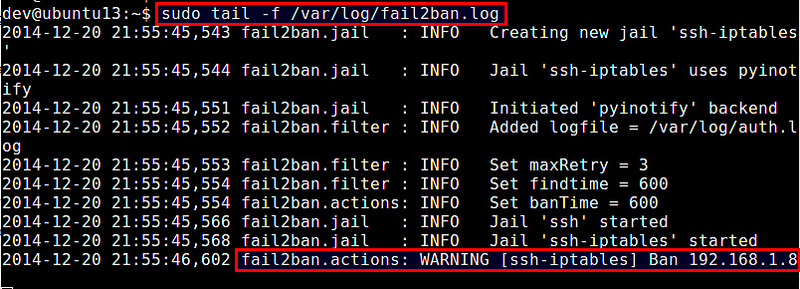
为了测试fail2ban是否能正常工作,尝试通过使用错误的密码来用SSH连接到服务器模拟一个暴力破解攻击。与此同时,监控 /var/log/fail2ban.log,该文件记录在fail2ban中发生的任何敏感事件。

$ sudo tail -f /var/log/fail2ban.log

使用 fail2ban 防御 SSH 服务器的暴力破解使用 fail2ban 防御 SSH 服务器的暴力破解

根据上述的日志文件,Fail2ban通过检测IP地址的多次失败登录尝试,禁止了一个IP地址192.168.1.8。

检查fail2ban状态并解禁被锁住的IP地址

由于fail2ban的“ssh-iptables”监狱使用iptables来阻塞问题IP地址,你可以通过以下方式来检测当前iptables来验证禁止规则。

$ sudo iptables --list -n
Chain INPUT (policy ACCEPT)
target     prot opt source               destination
fail2ban-SSH  tcp  --  0.0.0.0/0            0.0.0.0/0           tcp dpt:22

Chain FORWARD (policy ACCEPT)
target     prot opt source               destination

Chain OUTPUT (policy ACCEPT)
target     prot opt source               destination

Chain fail2ban-SSH (1 references)
target     prot opt source               destination
DROP       all  --  192.168.1.8          0.0.0.0/0
RETURN     all  --  0.0.0.0/0            0.0.0.0/0

如果你想要从fail2ban中解锁某个IP地址,你可以使用iptables命令:

$ sudo iptables -D fail2ban-SSH -s 192.168.1.8 -j DROP

当然你可以使用上述的iptables命令手动地检验和管理fail2ban的IP阻塞列表,但实际上有一个适当的方法就是使用fail2ban-client命令行工具。这个命令不仅允许你对”ssh-iptables”监狱进行管理,同时也是一个标准的命令行接口,可以管理其他类型的fail2ban监狱。

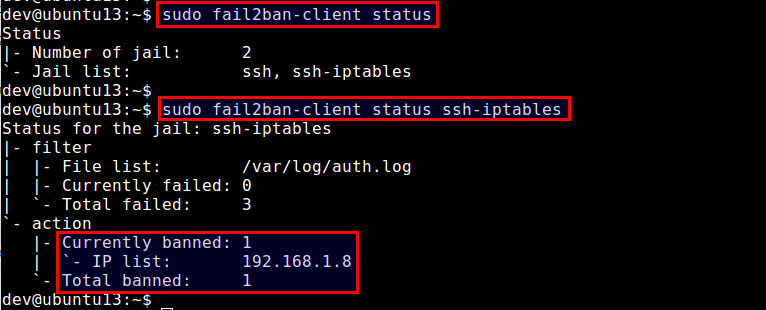
为了检验fail2ban状态(会显示出当前活动的监狱列表):

$ sudo fail2ban-client status

为了检验一个特定监狱的状态(例如ssh-iptables):

$ sudo fail2ban-client status ssh-iptables

上面的命令会显示出被禁止IP地址列表。

使用 fail2ban 防御 SSH 服务器的暴力破解使用 fail2ban 防御 SSH 服务器的暴力破解

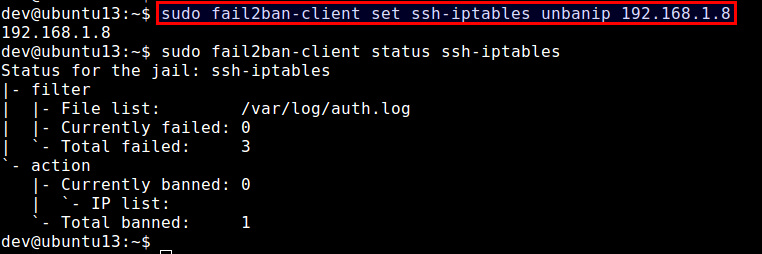
为了解锁特定的IP地址:

$ sudo fail2ban-client set ssh-iptables unbanip 192.168.1.8

使用 fail2ban 防御 SSH 服务器的暴力破解使用 fail2ban 防御 SSH 服务器的暴力破解

注意,如果你停止了Fail2ban 服务,那么所有的IP地址都会被解锁。当你重启 Fail2ban,它会从/etc/log/secure(或 /var/log/auth.log)中找到异常的IP地址列表,如果这些异常地址的发生时间仍然在禁止时间内,那么Fail2ban会重新将这些IP地址禁止。

设置 Fail2ban 自动启动

一旦你成功地测试了fail2ban之后,最后一个步骤就是在你的服务器上让其在开机时自动启动。在基于Debian的发行版中,fail2ban已经默认让自动启动生效。在基于Red-Hat的发行版中,按照下面的方式让自动启动生效。

在 CentOS/RHEL 6中:

$ sudo chkconfig fail2ban on

在 Fedora 或 CentOS/RHEL 7:

$ sudo systemctl enable fail2ban

总结

fail2ban可以缓解暴力密码攻击,但是请注意,这并不能保护SSH服务器避免来自复杂的分布式暴力破解组织,这些攻击者通过使用成千上万个机器控制的IP地址来绕过fail2ban的防御机制。

nginx访问量统计

查询某个时间段的日志

cat www.liangliang.org.cn.access.log grep 'POST'grep '2019:10' > 20191059.log

根据访问IP统计UV

awk '{print $1}' www.liangliang.org.cn.access.logsort  uniq -c wc -l

统计访问URL统计PV

awk '{print $8}' www.liangliang.org.cn.access.logwc -l

查询访问最频繁的URL

awk '{print $8}' www.liangliang.org.cn.access.logsort  uniq -c sort -n -k 1 -rmore

查询访问最频繁的IP

awk '{print $1}' www.liangliang.org.cn.access.logsort  uniq -c sort -n -k 1 -rmore

根据时间段统计查看日志

cat www.liangliang.org.cn.access.log sed -n '/14\/Mar\/2015:21/,/14\/Mar\/2015:22/p'more

查询每秒请求

awk '{print $4}' www.liangliang.org.cn.access.log cut -c 14-21sortuniq -csort -nrhead -n 100

PV(访问量):

Page View,即页面浏览量或点击量,用户每次刷新即被计算一次。

UV(独立访客):

Unique Visitor,访问您网站的一台电脑客户端为一个访客。00:00-24:00内相同的客户端只被计算一次。

IP(独立IP):

Internet Protocol,指独立IP数。00:00-24:00内相同IP地址只被计算一次。

每个小布玩家,都想实现通用包的设计。

那么来了,yanglun先生的发明精巧,方便。而且便携有效。 可以说做一件事情简单有效的达到目的是一种美。 杨先生的作品刚好如此,看精彩视频。以及图片说明。

[video width=”960” height=”544” mp4=”https://www.liangliang.org.cn/wp-content/uploads/2022/04/yanglun发明-2022-4-4.mp4"\]\[/video\]

2022年4月5日,杨先生补充了具体制作步骤,图文并茂详解步骤。我这边整理为pdf供大家制作与欣赏。(文件有点大,请耐心等待。)点击下载:步-骤.pdf

debian开启samba文件夹共享服务,配置用户/密码。

1.安装samba服务

apt-get install samba

2.创建用户 useradd -m smb 设置密码 passwd xxxxx

3.设置samba访问共享账户密码,会要求你输入samba帐户的密码 smbpasswd -a smb

New SMB password: Retype new SMB password:

列出现有的Samba用户列表: pdbedit -w -L

4.修改/etc/samba/smb.conf,配置共享文件夹属性,在末尾处添加:

[smb name xxx]
path = /mnt/xxxxxxxx
writable = yes
guest ok = yes
write list = smb
valid users = smb
display charset = UTF-8
unix charset = UTF-8
dos charset = cp936

5.重启samba服务 systemctrl restart smbd

适配局域网小米电视配置的SMB

#
# Sample configuration file for the Samba suite for Debian GNU/Linux.
#
#
# This is the main Samba configuration file. You should read the
# smb.conf(5) manual page in order to understand the options listed
# here. Samba has a huge number of configurable options most of which 
# are not shown in this example
#
# Some options that are often worth tuning have been included as
# commented-out examples in this file.
#  - When such options are commented with ";", the proposed setting
#    differs from the default Samba behaviour
#  - When commented with "#", the proposed setting is the default
#    behaviour of Samba but the option is considered important
#    enough to be mentioned here
#
# NOTE: Whenever you modify this file you should run the command
# "testparm" to check that you have not made any basic syntactic 
# errors. 

#======================= Global Settings =======================

[global]

## Browsing/Identification ###

# Change this to the workgroup/NT-domain name your Samba server will part of
   workgroup = WORKGROUP

#### Networking ####

# The specific set of interfaces / networks to bind to
# This can be either the interface name or an IP address/netmask;
# interface names are normally preferred
;   interfaces = 127.0.0.0/8 eth0

 hosts allow = 192.168.     //只允许192.168.0.0的网段访问

# Only bind to the named interfaces and/or networks; you must use the
# 'interfaces' option above to use this.
# It is recommended that you enable this feature if your Samba machine is
# not protected by a firewall or is a firewall itself.  However, this
# option cannot handle dynamic or non-broadcast interfaces correctly.
;   bind interfaces only = yes

#### Debugging/Accounting ####

# This tells Samba to use a separate log file for each machine
# that connects
   log file = /var/log/samba/log.%m

# Cap the size of the individual log files (in KiB).
   max log size = 1000

# We want Samba to only log to /var/log/samba/log.{smbd,nmbd}.
# Append syslog@1 if you want important messages to be sent to syslog too.
   logging = file

# Do something sensible when Samba crashes: mail the admin a backtrace
   panic action = /usr/share/samba/panic-action %d

####### Authentication #######

# Server role. Defines in which mode Samba will operate. Possible
# values are "standalone server", "member server", "classic primary
# domain controller", "classic backup domain controller", "active
# directory domain controller". 
#
# Most people will want "standalone server" or "member server".
# Running as "active directory domain controller" will require first
# running "samba-tool domain provision" to wipe databases and create a
# new domain.
   server role = standalone server

   obey pam restrictions = yes

# This boolean parameter controls whether Samba attempts to sync the Unix
# password with the SMB password when the encrypted SMB password in the
# passdb is changed.
   unix password sync = yes

# For Unix password sync to work on a Debian GNU/Linux system, the following
# parameters must be set (thanks to Ian Kahan <<kahan@informatik.tu-muenchen.de> for
# sending the correct chat script for the passwd program in Debian Sarge).
   passwd program = /usr/bin/passwd %u
   passwd chat = *Enter\snew\s*\spassword:* %n\n *Retype\snew\s*\spassword:* %n\n *password\supdated\ssuccessfully* .

# username map = /etc/samba/smbusers  //用来定义用户名映射,比如可以将root换成administrator、admin等

# This boolean controls whether PAM will be used for password changes
# when requested by an SMB client instead of the program listed in
# 'passwd program'. The default is 'no'.
   pam password change = yes

# This option controls how unsuccessful authentication attempts are mapped
# to anonymous connections
   map to guest = bad user

########## Domains ###########

#
# The following settings only takes effect if 'server role = primary
# classic domain controller', 'server role = backup domain controller'
# or 'domain logons' is set 
#

# It specifies the location of the user's
# profile directory from the client point of view) The following
# required a [profiles] share to be setup on the samba server (see
# below)
;   logon path = \\%N\profiles\%U
# Another common choice is storing the profile in the user's home directory
# (this is Samba's default)
#   logon path = \\%N\%U\profile

# The following setting only takes effect if 'domain logons' is set
# It specifies the location of a user's home directory (from the client
# point of view)
;   logon drive = H:
#   logon home = \\%N\%U

# The following setting only takes effect if 'domain logons' is set
# It specifies the script to run during logon. The script must be stored
# in the [netlogon] share
# NOTE: Must be store in 'DOS' file format convention
;   logon script = logon.cmd

# This allows Unix users to be created on the domain controller via the SAMR
# RPC pipe.  The example command creates a user account with a disabled Unix
# password; please adapt to your needs
; add user script = /usr/sbin/adduser --quiet --disabled-password --gecos "" %u

# This allows machine accounts to be created on the domain controller via the 
# SAMR RPC pipe.  
# The following assumes a "machines" group exists on the system
; add machine script  = /usr/sbin/useradd -g machines -c "%u machine account" -d /var/lib/samba -s /bin/false %u

# This allows Unix groups to be created on the domain controller via the SAMR
# RPC pipe.  
; add group script = /usr/sbin/addgroup --force-badname %g

############ Misc ############

# Using the following line enables you to customise your configuration
# on a per machine basis. The %m gets replaced with the netbios name
# of the machine that is connecting
;   include = /home/samba/etc/smb.conf.%m

# Some defaults for winbind (make sure you're not using the ranges
# for something else.)
;   idmap config * :              backend = tdb
;   idmap config * :              range   = 3000-7999
;   idmap config YOURDOMAINHERE : backend = tdb
;   idmap config YOURDOMAINHERE : range   = 100000-999999
;   template shell = /bin/bash

# Setup usershare options to enable non-root users to share folders
# with the net usershare command.

# Maximum number of usershare. 0 means that usershare is disabled.
#   usershare max shares = 100

# Allow users who've been granted usershare privileges to create
# public shares, not just authenticated ones
   usershare allow guests = yes

#======================= Share Definitions =======================

[homes]
   comment = Home Directories
   browseable = no

# By default, the home directories are exported read-only. Change the
# next parameter to 'no' if you want to be able to write to them.
   read only = yes

# File creation mask is set to 0700 for security reasons. If you want to
# create files with group=rw permissions, set next parameter to 0775.
   create mask = 0700

# Directory creation mask is set to 0700 for security reasons. If you want to
# create dirs. with group=rw permissions, set next parameter to 0775.
   directory mask = 0700

# By default, \\server\username shares can be connected to by anyone
# with access to the samba server.
# The following parameter makes sure that only "username" can connect
# to \\server\username
# This might need tweaking when using external authentication schemes
   valid users = %S

# Un-comment the following and create the netlogon directory for Domain Logons
# (you need to configure Samba to act as a domain controller too.)
;[netlogon]
;   comment = Network Logon Service
;   path = /home/samba/netlogon
;   guest ok = yes
;   read only = yes

# Un-comment the following and create the profiles directory to store
# users profiles (see the "logon path" option above)
# (you need to configure Samba to act as a domain controller too.)
# The path below should be writable by all users so that their
# profile directory may be created the first time they log on
;[profiles]
;   comment = Users profiles
;   path = /home/samba/profiles
;   guest ok = no
;   browseable = no
;   create mask = 0600
;   directory mask = 0700

[printers]
   comment = All Printers
   browseable = no
   path = /var/spool/samba
   printable = yes
   guest ok = no
   read only = yes
   create mask = 0700

# Windows clients look for this share name as a source of downloadable
# printer drivers
[print$]
   comment = Printer Drivers
   path = /var/lib/samba/printers
   browseable = yes
   read only = yes
   guest ok = no
# Uncomment to allow remote administration of Windows print drivers.
# You may need to replace 'lpadmin' with the name of the group your
# admin users are members of.
# Please note that you also need to set appropriate Unix permissions
# to the drivers directory for these users to have write rights in it
;   write list = root, @lpadmin

security = share

[tv]
path = /mnt/downloads
writable = yes
guest ok = yes
#write list = tv
#valid users = tv
display charset = UTF-8
unix charset = UTF-8
dos charset = cp936

samba配置详解

第一部分:Samba服务的控制选项(用户控制、访问控制)

1 用户控制

public = no 不允许匿名用户访问
browseable = yes 不隐藏目录(知道目录同样可以访问) (系统默认yes,可以不写)
valid users = 用户或列表或@用户组
writable = yes 可写(目录本身要可写)
writable list = 用户或列表或@用户组
readonly = yes 是否设置只读(系统默认yes,可以不写)
create mask = 0744 控制客户机创建文件的权限(系统默认0744)
directory mask = 0744 控制客户机创建目录的权限(系统默认0755)

2,访问控制

max connections = 最大连接数目
deadtime = 断掉连接时间(分钟)0为不限制

注:在全局里增加

hosts deny = .sale.com .net free 表示禁止.sale.com域和.net域及主机名为free的客户端访问
hosts deny = All 表示所有客户端,并不是说允许主机名为ALL的客户端可以访问。常用的通配符还有“*”,“?”,“LOCAL”等
hosts allow = 192.168.0. EXCEPT 192.168.0.100 192.168.0.78 表示允许192.168.0.0网段IP地址访问,但是192.168.0.100和192.168.0.78除外

注:在可在全局与局部里增加

注::允许优先

第二部分:几个关键字段

根据需要增加在全局里面。虽然简单,但功能不简单,大家在用到的时候慢慢来体会。

include = /etc/samba/%G.smb.conf   调用用户组相关 的配置文件
include = /etc/samba/%U.smb.conf   调用用户相关的配置文件
username map = /etc/samba/smbusers  调用映射用户账号的配置文件

第三部分:和Samba有关的一些命令

批量增加SMB用户

复制代码代码示例:

# for user in 用户列表
do
useradd -g group -s shell $user
smbpasswd -a $user
done

编辑SMB的用户账号相关命令

smbpasswd
smbpasswd -a 增加一个账号
smbpasswd -d 禁用一个账号
smbpasswd -e 启用一个账号
smbpasswd -x 删除一个账号
smbpasswd 更改用户密码

pdbedit

pdbedit -L 列出SMB中的账号
pdbedit -a 增加一个账号
pdbedit -x 删除一个账号

注:上面两个命令,大家根据需要选择

Linux客户端的访问工具

smbtree 显示局域网中的所有共享主机和目录列表
smbtree -D 只显示局域网中的工作组或域名。后面可以加上-U username%passwd ,则表示是相关用户的访问权限

nmblookup 某个主机的netbios主机名或工作组。 # 显示相应的IP

smbclient命令格式
smbclient -L //主机名或IP地址 -U 登录用户名  # 列出目标主机共享资源列表
smbclient  //主机名或IP地址/共享目录名 -U 登录用户名 # 使用共享资源

mount命令格式

mount //目标IP地址或主机名/共享目录名称 挂载点 -o username=用户名 # 挂载共享
umount 挂载点 # 卸载共享
smbtar -s server –u user –p passwd –x shareneam –t output.tar # 把远程 的内容备份到本地
tar tvf *.tar # 查看TAR文件包里面的的内容

第四部分:实例详解

  • 例1,员工可以在公司内流动办公,无论在任何一台机器上工作,都能把自己的文件放到服务器里,同时不能使用服务器上的SHELL。(注解:SMB中有关于用户家目录的默共享 设置,我们只要 设置USER级别,然后再增加用户和指定不可用的SHELL) smb.conf配置文件更改的内容如下

复制代码代码示例:

security = user
[homes]
comment = Home Directories
browseable = no

writable = yes
valid users = %S

配置好后,就重新启动SMB服务

复制代码代码示例:

useradd user -s /dev/null
smbpasswd -a user

增加好用户和密码后,直接测试! 不用重新启动SMB服务!

  • 例2,建立共享目录student,它的本机路径为“/home/student”,只有teachers组的用户可以读写该目 录,students用户组只能读取。(注解:这个关键是不同组对同一个目 录的权限设置,student这 个目录属于students用户组,并设置他的OTHER 权限为7,我们通过这个OTHER权限来实现teachers组对student目录的访问,通过SMB的配置文件来 限制用户访问)

复制代码代码示例:

mkdir /home/student
groupadd students
groupadd teachers
useradd -g students user
useradd -g teachers user
smbpasswd -a user
chgrp students /home/student
chmod 757 /home/student
chmod g+s /home/student

smb.conf配置文件更改的内容如下

复制代码代码示例:

security = user
[student]
 path = /home/student
 comment = student
 write list = @teachers
 valid users = @teachers @students

重新启动SMB服务,进行测试。

  • 例3,公司有二个部门( sales market ),销售部和市场部有自己单独的共享目录,只可以总经理和相应部门员工访问,并且公司员工禁止访问非本部门的共享目录。(注 解:这一个内容与第二个类似,只是用户组变成用户,多了一个用户组,只需要把文件夹所有者给总经理,所属组为用户 组就OK)

复制代码代码示例:

mkdir /home/sales
mkdir /home/market
groupadd sales
groupadd market
useradd -g sales user
useradd -g market user
smbpasswd -a user
chgrp sales /home/sales
chgrp market /home/market
chown ceo /home/sales
chown ceo /home/market
chmod 770 /home/sales
chmod 770 /home/market
chmod g+s /home/sales
chmod g+s /home/market

smb.conf配置文件更改的内容如下

复制代码代码示例:

security = user
[sales]
 path = /home/sales
 comment = sales
 write list = @sales ceo
 valid users = @sales ceo
 create mask = 0770
 directory mask = 0770
[market]
 path = /home/market
 comment = market
 write list = @market ceo
 valid users = @market ceo
 create mask = 0770
 directory mask = 0770

重新启动SMB服务,进行测试。

  • 例4,实现在登陆的时候只能看到自己的共享目录,没有权限访问的看不到。

(注解:其实实现这个主要靠加载独立的配置文件来实现,只要把独立的文件设置好相应的权限就 OK,SMB主配置文件中加入独立的配置文件,其他不用设置) 关于用户的增加我这里 就不写出来了,和上面的没有区别。(略过)

首先,把源始的smb.conf COPY 出来,后面加上相应的用户或者组, 如:smb.conf.user smb.conf.group 然后,配置各己的配置文件。

如:smb.conf.ceo

复制代码代码示例:

[sales]
 comment = sales
 path = /home/sales
 writeable = yes
 valid users = ceo
 create mask = 0770
 directory mask = 0770

[markets]
 comment = markets
 path = /home/markets
 writeable = yes
 valid users = ceo
 create mask = 0770
 directory mask = 0770

如:smb.conf.sales

复制代码代码示例:

[sales]
 comment = sales
 path = /home/sales
 writeable = yes
 valid users = @sales
 create mask = 0770
 directory mask = 0770

如:smb.conf.markets

复制代码代码示例:

[markets]
 comment = markets
 path = /home/markets
 writeable = yes
 valid users = @markets
 create mask = 0770
 directory mask = 0770

主配置文件如下:

复制代码代码示例:

security = user
 include = /etc/samba/smb.conf.%G
 include = /etc/samba/smb.conf.%U

其他的不用设置,重新启动SMB服务,然后测试!

第五部分:Samba服务搭建的注意事项 1、防火墙和SELinux 2、主机名 3、建立Samba用户 4、用户的权限 5、目录的权限 6、其他事项

第六部分:Samba服务排错 (1)错误信息 (2)配置文件 (3)日志文件

testparm   #查看配置文件
testparm /etc/samba/smb.conf 主机名 IP  #测试具体机器能否访问及访问的范围
[netstat](http://www.jbxue.com/shouce/linuxcmd/网络通讯/netstat.html) –tlunp  grep service #显示服务的对应端

就是这些了,为大家详细介绍了samba的服务安装与配置、及相关的注意事项,希望对大家有所帮助。
0%